Worldwide aviation data / Android
Find nearby frequencies.
Listen with RTL-SDR.
Discover local aviation frequencies, then tap one to tune your RTL-SDR and listen through the free OpenSDR Radio Host app.
See which airports and airspaces share a frequency, read its notes and explore the map using worldwide OpenAIP data. You can browse with just your phone; live audio uses a compatible receiver.
Coverage, completeness and freshness vary by country and the bundled dataset.
Preparing for Google Play. The listing may not be available yet.
Current features are free. No ads. No account required.
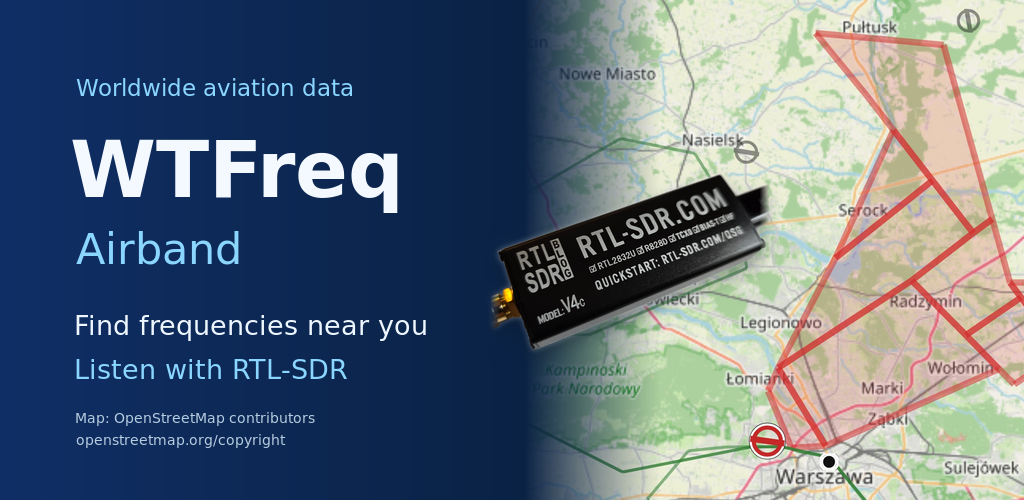
Find / Tune / Listen
From a nearby frequency to live radio.
Find nearby frequencies
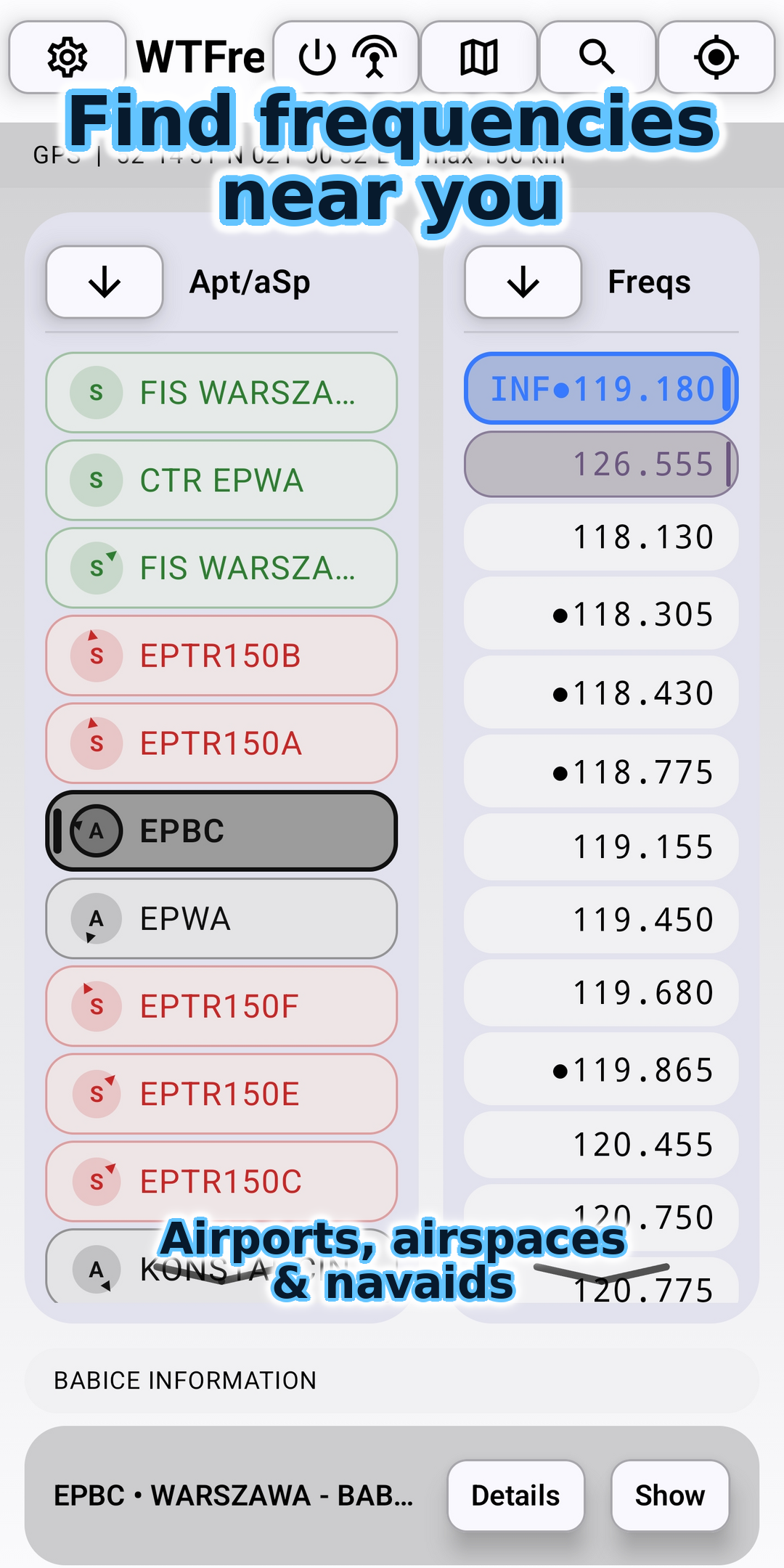
Use GPS or a manual position to find airports, airspaces and navaids and their listed frequencies. See distance and direction to each object.
Tap to tune and listen
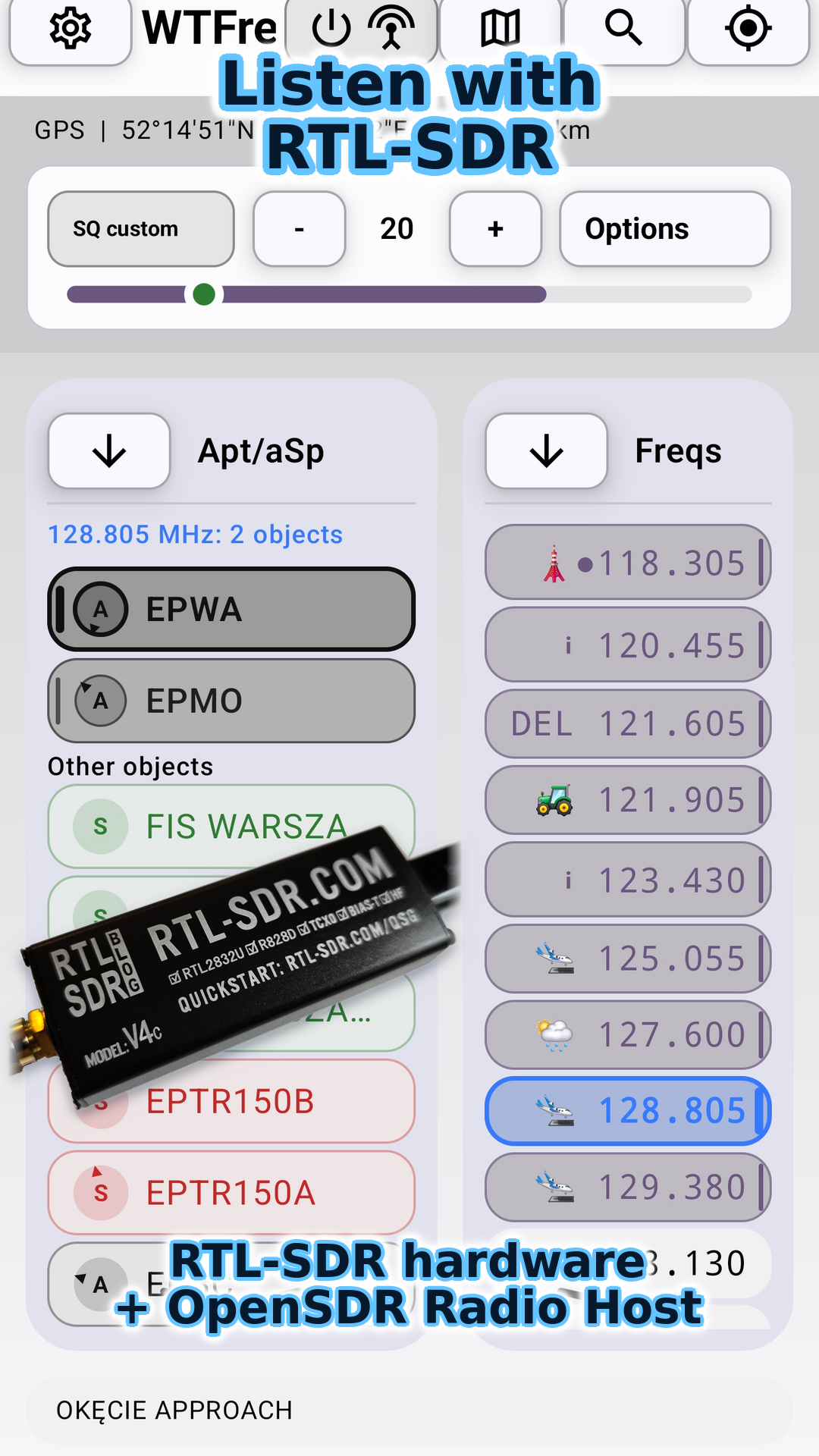
Connect RTL-SDR through OpenSDR Radio Host, then tap a frequency in WTFreq to tune the receiver. Control listening from the same app you use to find frequencies.
Put radio in context
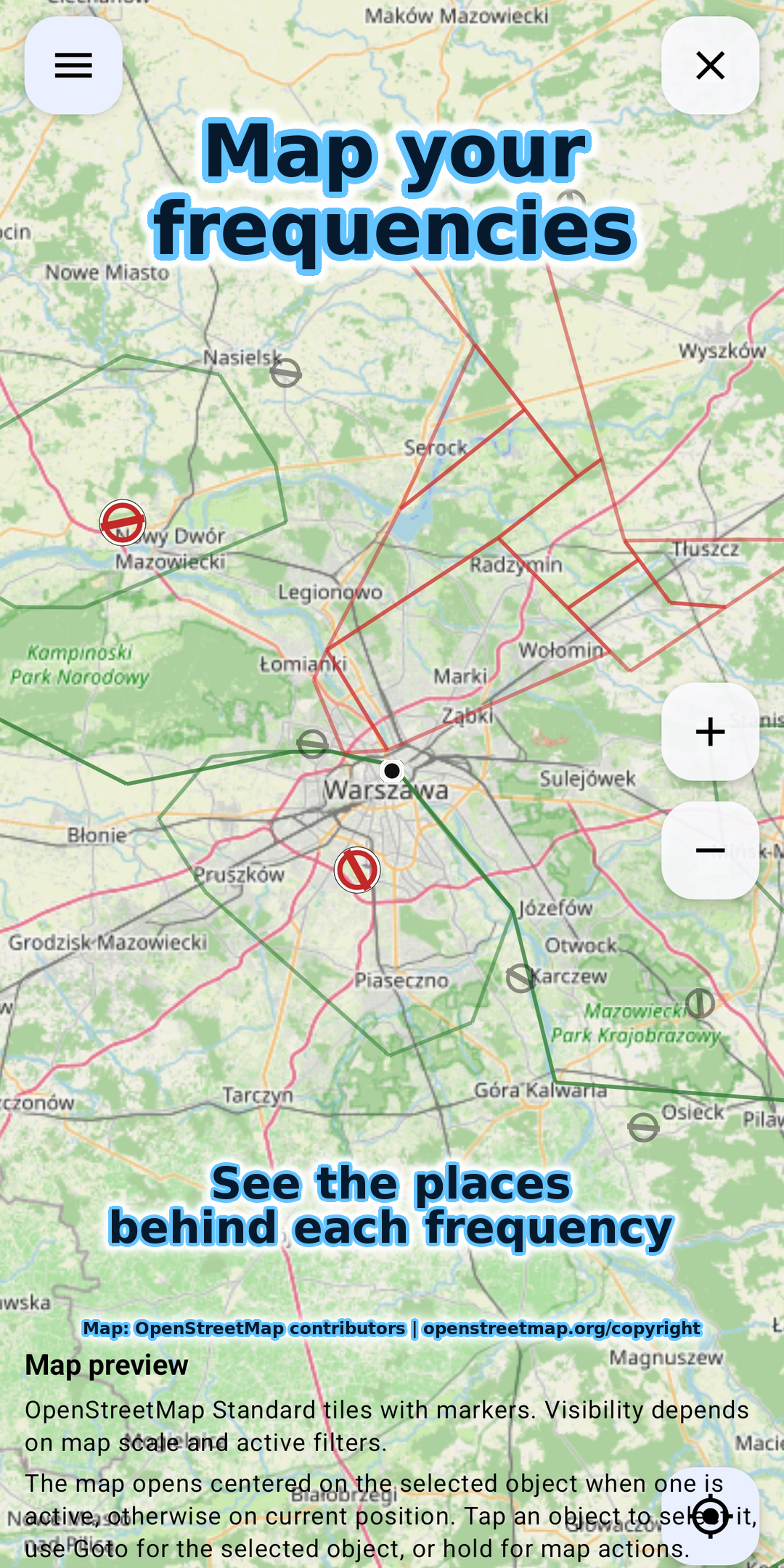
Read frequency names and notes. See which airports and airspaces share a frequency, highlight them on the map and explore their details.
Save your own frequencies, adjust text size and map visibility, and return to your last selection. The bundled aviation database can be browsed offline; online map tiles require internet access unless already cached.
Listed frequencies come from the database; they are not a live scan of transmissions or a guarantee of reception at your position.
RTL-SDR listening
Find a frequency. Hear it with a tap.
Bring frequency discovery and radio reception together. Connect compatible RTL-SDR hardware through the free OpenSDR Radio Host app, then tap a frequency in WTFreq to tune and listen. Keep its name, notes and related objects at hand while you listen.
Use WTFreq for everyday listening controls, or open the Host for advanced receiver settings, spectrum and waterfall.
Live audio requires an RTL-SDR receiver, antenna, USB host/OTG connection and OpenSDR Radio Host. Hardware is not included. Reception is local, not an internet radio stream.
Find it. Tune it. Explore it.
Find nearby frequencies, listen with RTL-SDR and see the places behind the radio. Explore real examples from Poland, the UK and the US. Select an image to view it at full size.
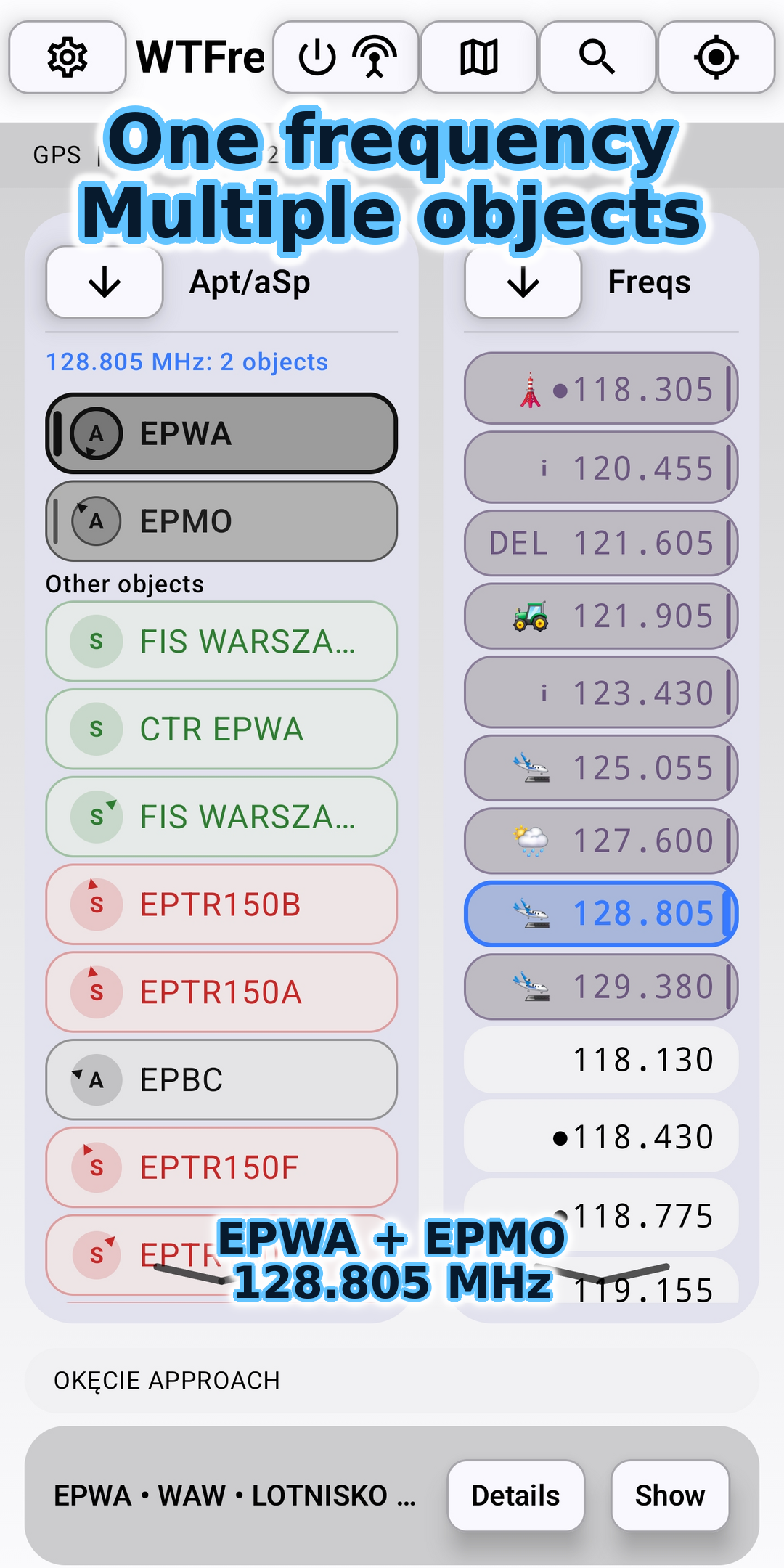
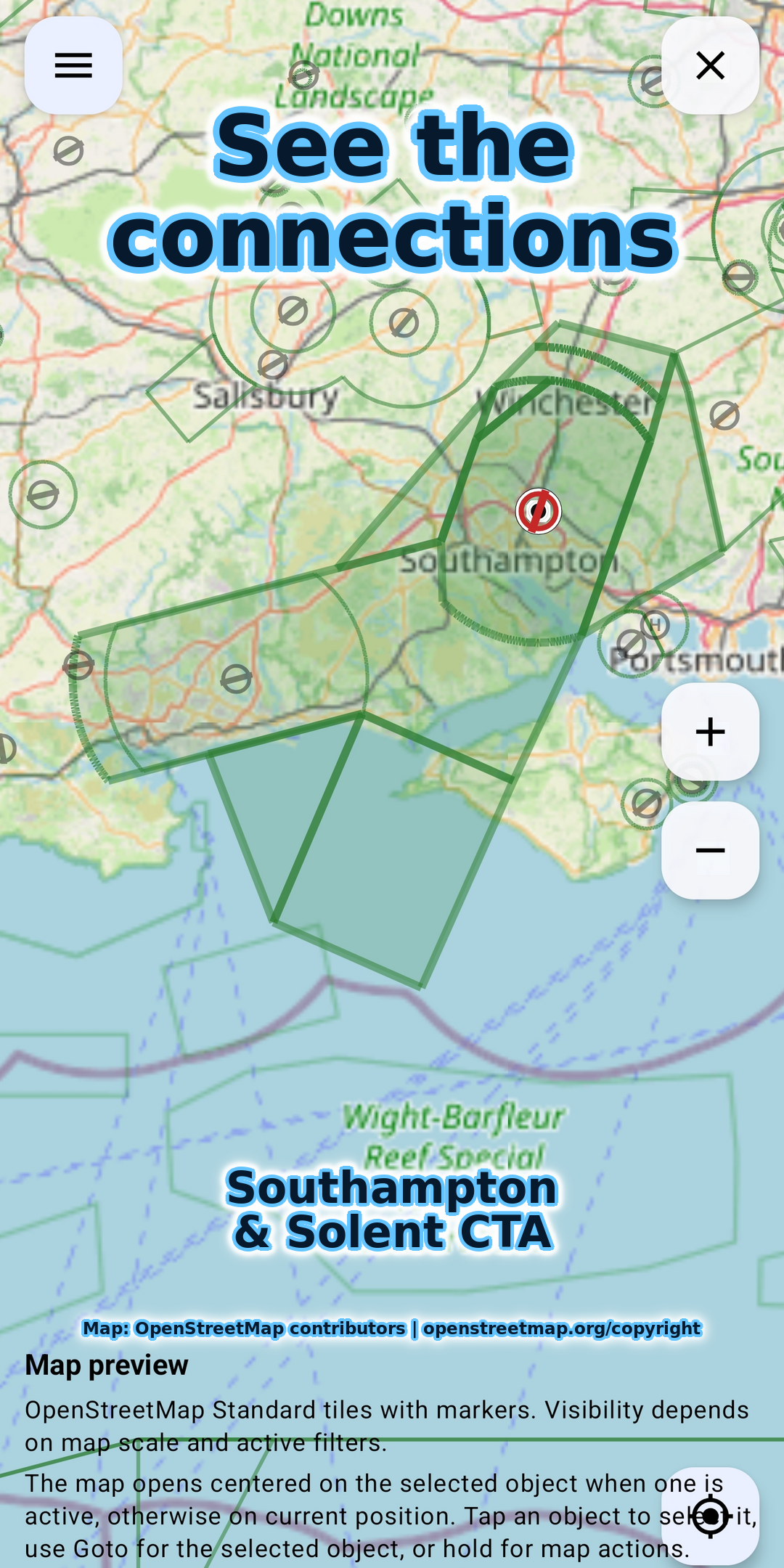
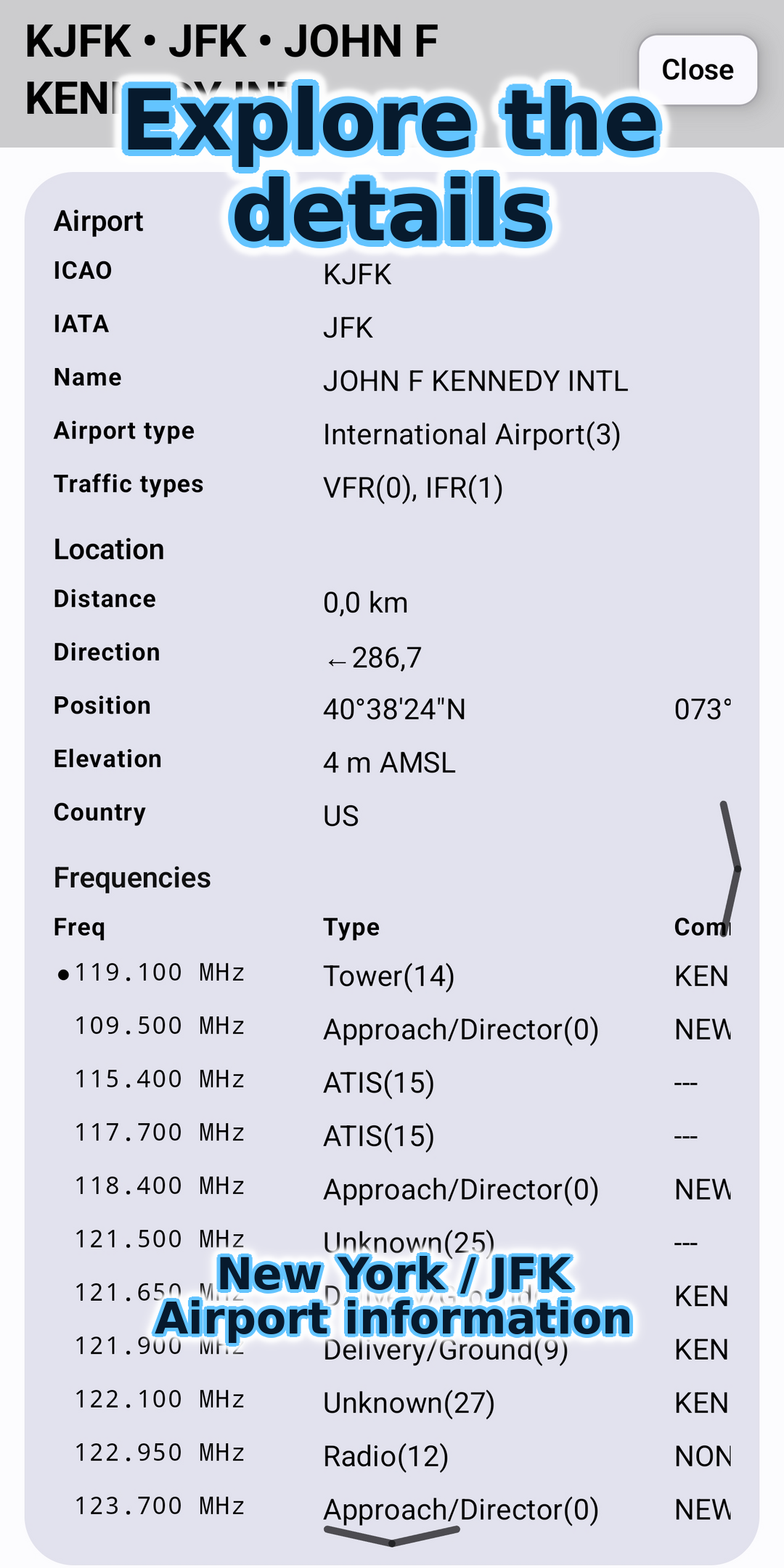
Map imagery: © OpenStreetMap contributors. Worldwide refers to the scope of OpenAIP data, not worldwide radio reception. Coverage varies by country and dataset.
Find frequencies. Connect RTL-SDR to listen.
- Choose your position. Allow GPS or enter a location manually to find nearby objects and frequencies.
- Choose an object or frequency. Inspect details and comments, or open the map.
- For reception, install OpenSDR Radio Host. Connect a compatible RTL-SDR dongle and antenna using USB OTG, grant USB permission and start SDR from WTFreq.
Requires Android 7.0 or newer. Radio reception also requires USB-host support and sufficient power for the dongle. Hardware and reception quality vary.
Meet OpenSDR Radio HostFree now / Optional extras later
More tools, when they are ready.
The current map, search, frequency and listening features are available without a paid unlock.
Optional paid components are planned for WTFreq, such as frequency scanning and audio recording. They are not available in the current release. Pricing, availability and purchase terms will be shown before any purchase; no price, subscription or lifetime entitlement is being promised here.
Any future payment will be for application features, not for OpenAIP data. OpenSDR remains a separate open-source project under its own licenses.
See it in action / 29 seconds
Find a frequency.
Hear what’s on air.
Watch WTFreq find nearby frequencies, tune an RTL-SDR receiver and connect radio reception with the places on the map.
Includes real airband reception. Listening requires compatible RTL-SDR hardware and the free OpenSDR Radio Host app.
Press Play to load the YouTube player and connect to Google. Video privacy details.
Music: Electric Dreams © Scott Buckley, released under CC BY 4.0. Excerpts edited with fades and level adjustments.
A few practical questions.
How do I listen to airband?
Connect a compatible RTL-SDR receiver and antenna using USB OTG, install OpenSDR Radio Host, and start SDR from WTFreq. Radio reception requires a USB-host-capable Android device. This is local radio reception, not an internet radio-streaming service.
What can I explore with just my phone?
Find nearby frequencies, read their names and notes, and explore airports and airspaces on the map. Database browsing works offline; online map tiles need internet unless cached. Add a compatible RTL-SDR receiver and OpenSDR Radio Host to tune and listen from the frequency list.
Where can I buy an RTL-SDR receiver?
Visit RTL-SDR.com and choose RTL-SDR Store. Hardware is purchased separately. Check the exact model's compatibility with OpenSDR Radio Host and choose a suitable antenna and USB OTG connection for your phone.
Where are the advanced radio controls?
Open OpenSDR Radio Host for receiver configuration, spectrum, waterfall and diagnostics. When WTFreq is already using the receiver, opening the Host shows that active session rather than applying a frequency from history.
Can I use this for flying?
No. WTFreq is an informational hobby application, not a flight-planning, navigation or operational tool.
Why is there no sound?
Check USB permission, power, the antenna, frequency and squelch. Confirm reception is lawful in your location. The Host diagnostics can help identify USB or audio problems.
Why do strong, nearby transmissions sound distorted? Do I need an attenuator?
Near an airport, a strong signal can overload the RTL-SDR or an external amplifier before the app receives it. A bright waterfall trace does not guarantee clean audio. Software filtering and lower phone volume cannot recover information already lost through RF overload.
Try lower manual RF gain in OpenSDR Radio Host and bypass any external LNA. If reception still overloads, an RF attenuator may be necessary: connect antenna → attenuator → RTL-SDR. For a typical RTL-SDR Blog V3/V4 setup, choose a passive 50-ohm inline RF attenuator, SMA male to SMA female (not RP-SMA), rated for 118-137 MHz. Its male plug connects to the receiver's SMA female socket; its female socket accepts the antenna cable's SMA male plug. Check connectors on other receiver models.
Start with 10 dB as a practical trial. Try 6 dB if wanted signals become too weak, or 20 dB if overload persists. A switchable attenuator makes adjustment easier; use the least attenuation that improves clarity. Inline does not mean DC-pass: an ordinary RF attenuator is not automatically safe for Bias-T power.
Attenuation also reduces weak-signal sensitivity. Leave Bias-T off for a passive antenna and attenuator unless the complete chain supports DC power. An FM-block filter targets broadcast FM, not an excessively strong airband station. Similar distortion in another app is a clue, not proof of overload; also check tuning and modulation. See the manufacturer's gain and overload guide.
Before sharing diagnostics, remove location or other information you do not want to disclose. Read about support reports.
For the love of aviation. Not for operations.
Every effort has been made to build a useful application, but data and reception may be incomplete, outdated or incorrect.
Aviation data shown in this application is for informational and hobby use only. It must not be used for flight planning, navigation, operational aviation decisions, or as a substitute for official AIP, NOTAM, AIS, ATC, or other authoritative sources.
Check the laws where you use the receiver. Aviation radio reception may be permitted, restricted or prohibited; permission to receive does not necessarily permit recording or sharing transmissions.
OpenAIP data attribution
This application may include data from OpenAIP. OpenAIP data is © OpenAIP contributors and is licensed under Creative Commons Attribution-NonCommercial 4.0 International.
OpenAIP data may have been modified, simplified, filtered, converted, or transformed for use in this application. No endorsement by OpenAIP is implied.